Showing posts with label Sharepoint. Show all posts

Tuesday, December 29, 2015

Error - The Managed Metadata Service 'Managed Metadata Service Application' is inaccessible or not working

Problem:

If you receive a Message at "Event Viewer" with something like this:

"The Managed Metadata Service 'Managed Metadata Service Application' is inaccessible."

Follow the steps bellow!


Solution:


  1. Go to “Central Administration” and select “Manage service applications”.
  2. Select "Managed Metadata service application" (outside the name)  (Picture 1)
  3. Then click on "Properties” (Picture 1)
  4.  (Picture 1)
  5. Save your "Database name" (Picture 1)
  6. Append "_temp" to the "Database name", so it will be "SPT13PRD_SvcApp_Metadata_temp" in my case.
  7. Confirm if the change took affect. If not repeat. (In my case It took twice).
  8. Wait 5 minutes.
  9. Do the Step 6 but instead of append, remove the "_temp".
  10. Repeat Step 7.
  11. Wait 1 minute, so changes take affect.
  12. Select Administrators (Picture 1 - Left of "Manage") and add the SharePoint Administrators Accounts (At least your User).
  13. Finish


You should be able to use your manage Metadata Service.

Have a nice Day!

Friday, November 20, 2015

Office 365 Sharepoint Cloud plus On premises equal Hybrid

Today I will share with you a Big picture of the Architectures of SharePoint Server 2013.

There are 3 ways to go: Cloud, On-premises or Hybrid. This choice depends on your requirements.

Check the picture below to make a choice !


Wednesday, September 9, 2015

Microsoft announced that SharePoint 2016 will only be release in Spring 2016

Microsoft announced that SharePoint 2016 will only be release in Spring 2016.


In February, Microsoft shared their vision on the evolution of SharePoint, outlining our plans for continued cloud innovation with SharePoint in Office 365, and providing a glimpse of the work underway to deliver our next on-premises server release, SharePoint Server 2016.  With Ignite just a few weeks away, we’re getting ready to share more details on the innovation we’re bringing to SharePoint 2016. In the meantime, Microsoft wanted to provide an update on release timing and share some of the key enhancements and new capabilities we’re focused on.
Microsoft confirmed that SharePoint Server 2016 will become generally available in Q2 2016, with a public beta planned for Q4 2015. They also want to confirm their commitment to delivering on-premises releases of SharePoint for the foreseeable future. Their envision a future where they will continue to have customers who choose a combination of on-premises, cloud and hybrid deployments for many years to come.  Microsoft is excited to start sharing information on their SharePoint investments at Microsoft Ignite, so below there are highlighted some of the most relevant sessions to attend if you’re interested in learning more about the road ahead.
The next version of SharePoint Server, Microsoft is paying close attention to trends in content management, team collaboration, user experiences across devices, and how the cloud can be blended into existing on-premises scenarios in new and compelling ways. In particular Microsoft is focused on delivering value to customers as part of their on-premises deployments, while at the same time making it easier to take advantage of cloud innovation thru hybrid deployments of SharePoint Server with Office 365. With that backdrop, SharePoint Server 2016 will deliver enhancements and new capabilities in three major areas:
  • Improved user experiences
  • Cloud-inspired infrastructure
  • Compliance and reporting
SharePoint Server 2016 Update 1
Source: http://blogs.office.com/2015/04/16/sharepoint-server-2016-update/

Wednesday, July 8, 2015

No permissions to access site root "Sorry, you don't have access to this page"

If you have had this annoying message on your site

Sorry, you don't have access to this page

and you don't understand why it's happening, try the method below:

You have given read permission to a user on Site Permission and even with full control permission, user still can't access the Site!! keep reading...

You have tryied out every internet solution and nothing was usefull ?
Wait, here is the solution.

1- First go to your root site and list all webparts on it with "?contents=1" at the end of URL.

2- After that check every webpart/list/library permission that says "open on page" to see if it has "unique permission".

3- If you find any webpart/list/library with "unique permission" then "delete unique permission" and you should now login fine with the problematic user ;)


Monday, July 6, 2015

SharePoint 2013 Demonstration free online

Hi folks,

If you need a site to make a demo for a public speaking or just for fun, check out this site. 
It's free!!


I needed a public SharePoint Server just for a quick demonstration in a public speaking and was exactly what i found. Remember that the template allowed is only Team Sites, but it rocks.

Quick setup and you can create unlimited users but only 1 Site Collection.


Enjoy

Tuesday, June 2, 2015

Sql Server Configuration Manager remote procedure call failed(0x800706be)

Problem: Receiving the following message in SQL Server Configuration Manager:

"SQL Server Configuration Manager remote procedure call failed (0x800706be)"


Solution that WORKED for me: 

Tried a bunch of solutions found online but none worked. So i found myway out.
  1. Uninstall all versions of other SQL Versions in Control Panel
  2. Register the sqlmgmprovider with this command 
regsvr32 "C:\Program Files\Microsoft SQL Server\100\Shared\sqlmgmprovider.dll"

Thursday, July 17, 2014

Infopath Publishing error "The following URL is not valid"

When trying to publish Form the following alert appear "The Following URL is not valid"

Solution: 

After Googling and trying lots of things, I remembered my proxy was turned on at University...

Check if it's active, if so deactivate the proxy server at IE

Internet Options - > Connections - Lan settings - > "Proxy server" - deactivate the check boxes here

Have a great Day ;)

Wednesday, May 7, 2014

The workbook cannot be opened - Excel File SharePoint

Whether you open a excel file in SharePoint the following message appear "The workbook cannot be opened"

You have to do these 2 steps:
  1. Run Powershell commands
    1. $w = Get-SPWebApplication -Identity http://portal
    2. $w.GrantAccessToProcessIdentity("domain\ServiceAccount")
  2. Restart IIS iisreset /noforce

The breapoint will not currently be hit. No symbols have been loaded for this document.

Hi Folks,

One day in the morning I keep getting this error: The breakpoint will not currently be hit. No symbols have been loaded for this document.

I asked for help on a Microsoft College and He simple did "nothing". After 30 minutes it started to work and the only different thing he done was this:
Solution:

  1. Go to Menu build -> Configuration Manager
  2. In the Active Solution Configuration, select Release (or Debug if you had Release). Close
  3. Do a Clean Solution then a Build Solution
  4. Switch back to to Debug (or Release if you had Debug).
  5. Now if you deploy the error will go away.

Hope it helps for you folks

Allow anonymous access to internal, external or other network

Best Practices for allowing anonymous access to an existing Web Application or Portal.

NOTE: If you go straight and allow anonymous access on your Web Application, all users will have to click Sign In.

In spite of allow anonymous access to your web application and site collection, you should extend your web application and create a new IIS site with new hostname and then allow anonymous access


That’s is the right way because if you do all at the same web application users within intranet will not automatically authenticate in your Portal.

Trade-off: The problem is when you separate the same Site in two or more hostnames. Forms can only be submitted to one URL, so you must choice which one. That's the trade-off.
If you have a solution for that, I really appreciate your share.

Thank you.

Tuesday, April 29, 2014

Build-in, simple, easy and free way to block / disable Print and Download a copy button on SharePoint documents

Hi Folks,

Do you want to know how to block / disable Print and Download a copy buttons of a document in SharePoint without Information Right Management (IRM) ?

I was looking for an answer and haven't found on Internet and also asked Microsoft about it. They said apparently there is none.

So i began to look around for a solution...

And yeah i found a easy way with a mix os Sharepoint configurations and permissions.
I will make a tutorial of how you can do that in my next post.

Do you really think it is useful ?

Friday, March 28, 2014

Failed to retrieve data for this request. (Microsoft.SqlServer.Management.Sdk.Sfc)


Problem: After a while using some tasks like detaching, putting offline, shrinking on SQL Server Management Studio, I couldn't attach a database and the following error appear:

"Failed to retrieve data for this request. (Microsoft.SqlServer.Management.Sdk.Sfc)
An exception occurred while executing a Transact-SQL statement or batch. (Microsoft.SqlServer.ConnectionInfo)"

Refreshing and reconnecting won't work but don't give up...

Solution: Simply Restart SQL Server Management Studio!

Sunday, November 3, 2013

Error SharePoint Calculated Column Formulas

I was trying to create calculated column formulas in Site Column..

I realize that you can only do calculated column formulas in list column or by list columns...

Although, I found that initially when you creating Calculated Site Columns you can add formulas...

That's wierd but it took me several hours to find out.

Hope you enjoy you day.

I will leave a great combination of formulas here Calculated Formulas

Error The Managed Metadata Service or Connection is currently not available. The Application Pool or Managed Metadata Web Service may not have been started. Please Contact your Administrator

When accessing Managed Metadata Service the following message is prompt:

"The Managed Metadata Service or Connection is currently not available. The Application Pool or Managed Metadata Web Service may not have been started. Please Contact your Administrator"

I have done everything that i found on internet on Production and Quality SharePoint Environment and no solution worked for my Production Environment

What i have done:
  • Verify the “Managed Metadata Web Service” is "started". Reset several times..
  • Recreate the Service Application “Menaged Metadata Web Service”. Set full Permissions on and all others services account in hope it will work..but it didn't happen. It's not permissions issue.
  • Publish the same Service Application
  • Verify the Service Application Association have Managed Metadata Service is checked.
  • Dedicated Application Pool
  • Several iisresets

1 - Solution for Quality Environment: Create a new dedicated Application Pool 
  1. Go to Central Administration
  2. Click Application Management, then Manage Service Applications
  3. Select Managed Metadata Service and click Properties
  4. Create a new Application Pool


2 - Solution for Production Environment: Reattach Managed Metadata Database
This took me a harder solution.

  1. Go to SQL Server detach "Managed Metadata Database". Note: Select "Close Connection" option
  2. In Central Administration, Delete "Managed Metadata Service Application"
  3. Note: DO NOT Delete data associated with the Service Applications, You are deleting YOUR Database!!!
  4. Create a new Managed Metadata Service Application with a different name from the original DatabaseNote: Select the check-box "Add this service application to the farms default list".
  5. Take the newer database offline and close connections(At the end of this solution, this DB can be deleted)
  6. Do an attach of the original database
  7. At Central Administration, go to properties of managed Metadata and change the name to the original Database
  8. Do an iisreset


Thursday, September 26, 2013

SharePoint 2013 Drag and Drop doesn't appear + System Requirements

Hi!
My clients was getting trouble to upload documents in the new installed SharePoint 2013 version because they still had the Office 2010. So They had to get Office 2013 (that takes hours to install, logistics and that stuff) or install Chrome in 5 min with no permission and use this great functionality.

I leave the System Requirements to use the drag and drop functionality

You have to have at least one of this requirements to drag and drop in SharePoint 2013 or you can use Windows Explorer (List/Library menu -> "Open with Explorer"). Windows Explorer can be limited if you have customizations. 

  • Internet Explorer 10
  • Internet Explorer 9 + Office 2013
  • Internet Explorer 8 + Office 2013
  • FireFox 24+ version
  • Chrome 28+ version

Have a nice day.

The following form template cannot be upgraded because it is not currently uploaded on this farm: urn:schemas-microsoft-com:office:infopath

Hi!

This problem took me some hours to figure out what was happening, so I wanna share with you who are reading, so you can take 10min to resolve!

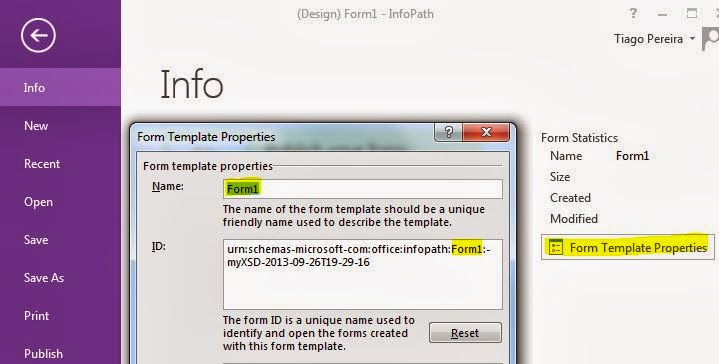
Problem:  When uploading a form by Administrator-Approved From Template (Advanced) the following message appear:
Sorry, something went wrong
The following form template cannot be upgraded because it is not currently uploaded on this farm: urn:schemas-microsoft-com:office:infopath:
:-myXSD-2012-02-20T18-57-14
I have tried several things, like removing the Form in CA, retracting the Solution.
Note: When you upload a Form to CA it's creates a solution or a file called .wsp.

Well, my mistake was changing the Form Name in InfoPath, so Form ID change based on Form Name and the Form ID HAVE to be the same to get upgraded and not creating a new Form when uploading to CA.

Solution:

1- Verify the Form ID in InfoPath exemplified above and on CA-> General Application Settings -> Manage form templates -> (existing Form) view properties -> Form ID if they have the same exact characters ?
If yes go to step 3.

2- If they don't match, you have to edit the Form ID of the new Form in InfoPath and Upload back.

Although, this hasn't worked and same error appeared. May be because our Farm just had been upgraded to SharePoint 2013.

3- So I had to do one more step to get it working. Retracted the Solution of the old Form (CA -> System Settings -> Manage farm solutions -> Select solution with name beginning by "form-
") 

3.1 - Uploaded the new Form and it worked! No more alerts about it is not currently uploaded on this Farm.

Have a nice day!

Friday, December 21, 2012

O site não é válido. Falta a biblioteca de documentos 'Páginas'.

Problem:  When activating a Feature the following message is shown

"O site não é válido. Falta a biblioteca de documentos 'Páginas'."

Solution: Open PowerShell and write these lines


$web = get-spweb http://sitecollection/subsite
$NewID = $web.Lists["Páginas"].ID
$web.AllProperties["__PagesListId"] = $NewID.ToString()
$web.Update()

Wait 5 minutes and check again. Note: If you check seconds later, the message still shows up. So wait a little bit more.

Wednesday, December 5, 2012

stsadm -o execadmsvcjobs


When deploying a Solution, Feature or Form a message is shown
"Solution XPTO is not being executed because the administration service on this server is not started. This job definition can be run manually using 'stsadm -o execadmsvcjobs'"

Solution:
1- Go to Services.msc on your server
2- Start the service called "windows sharepoint services administration" or  "SharePoint 2010 Administration". Depends on what version you have 2007 or 2010
3- Now your jobs gets executed in time.

Tuesday, November 27, 2012

Error you cannot input more than 255 characters MultiChoice Field


IF you have a field with values with more than 255 characters to a choice field and you add them all to your document, the following message is shown:

"you cannot input more than 255 characters"


Solution: Create a List with all the options of this field and modify the field on the Document Library to type Lookup. Select the checkbox "Allow unlimited length in document libraries"

Now you can have more than 255 characters in choice field.

This also works with the easylinkdocs Solution on codeplex http://easylinkdocs.codeplex.com/


Note: This only happen in document library. Not in custom lists.

Wednesday, November 21, 2012

SharePoint Error: Cannot import the Ad Rotator Web Part

When adding Ad Rotator Web Part to another Web App and error appear "Cannot import the Ad Rotator Web Part"

That's because the Solutions is not implemented in Central Administration.

Solution: 

1- Go to Central Administration
2- System Settings
3- Manage Farm Solutions
4- Select Solution "sectorpoint.products.adrotator.wsp"
5- Select "Deploy Solutions"
6- Select the Web Application you trying to add the Web Part
7- After Deploying try to add the Web Part again
8- Done

Hope it works.