Thursday, September 26, 2013

SharePoint 2013 Drag and Drop doesn't appear + System Requirements

Hi!
My clients was getting trouble to upload documents in the new installed SharePoint 2013 version because they still had the Office 2010. So They had to get Office 2013 (that takes hours to install, logistics and that stuff) or install Chrome in 5 min with no permission and use this great functionality.

I leave the System Requirements to use the drag and drop functionality

You have to have at least one of this requirements to drag and drop in SharePoint 2013 or you can use Windows Explorer (List/Library menu -> "Open with Explorer"). Windows Explorer can be limited if you have customizations. 

  • Internet Explorer 10
  • Internet Explorer 9 + Office 2013
  • Internet Explorer 8 + Office 2013
  • FireFox 24+ version
  • Chrome 28+ version

Have a nice day.

The following form template cannot be upgraded because it is not currently uploaded on this farm: urn:schemas-microsoft-com:office:infopath

Hi!

This problem took me some hours to figure out what was happening, so I wanna share with you who are reading, so you can take 10min to resolve!

Problem:  When uploading a form by Administrator-Approved From Template (Advanced) the following message appear:
Sorry, something went wrong
The following form template cannot be upgraded because it is not currently uploaded on this farm: urn:schemas-microsoft-com:office:infopath:
:-myXSD-2012-02-20T18-57-14
I have tried several things, like removing the Form in CA, retracting the Solution.
Note: When you upload a Form to CA it's creates a solution or a file called .wsp.

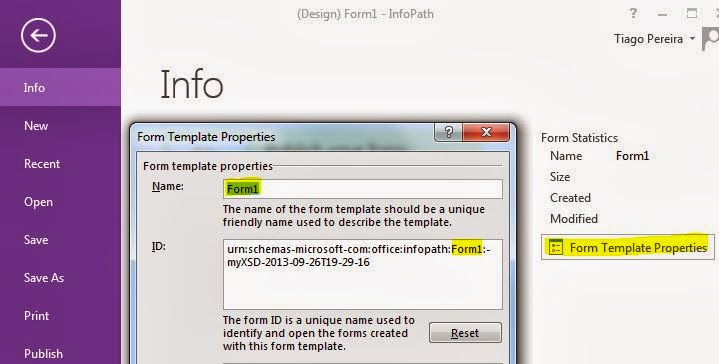
Well, my mistake was changing the Form Name in InfoPath, so Form ID change based on Form Name and the Form ID HAVE to be the same to get upgraded and not creating a new Form when uploading to CA.

Solution:

1- Verify the Form ID in InfoPath exemplified above and on CA-> General Application Settings -> Manage form templates -> (existing Form) view properties -> Form ID if they have the same exact characters ?
If yes go to step 3.

2- If they don't match, you have to edit the Form ID of the new Form in InfoPath and Upload back.

Although, this hasn't worked and same error appeared. May be because our Farm just had been upgraded to SharePoint 2013.

3- So I had to do one more step to get it working. Retracted the Solution of the old Form (CA -> System Settings -> Manage farm solutions -> Select solution with name beginning by "form-
") 

3.1 - Uploaded the new Form and it worked! No more alerts about it is not currently uploaded on this Farm.

Have a nice day!

Monday, September 16, 2013

SharePoint Designer Workflow running two times and only twice

Problem: SharePoint workflow is running two time everthing thing i do..

Solution: At the beginning of the workflow, add an action "Pause for duration" of 1 minute.

Friday, December 21, 2012

O site não é válido. Falta a biblioteca de documentos 'Páginas'.

Problem:  When activating a Feature the following message is shown

"O site não é válido. Falta a biblioteca de documentos 'Páginas'."

Solution: Open PowerShell and write these lines


$web = get-spweb http://sitecollection/subsite
$NewID = $web.Lists["Páginas"].ID
$web.AllProperties["__PagesListId"] = $NewID.ToString()
$web.Update()

Wait 5 minutes and check again. Note: If you check seconds later, the message still shows up. So wait a little bit more.

Wednesday, December 5, 2012

stsadm -o execadmsvcjobs


When deploying a Solution, Feature or Form a message is shown
"Solution XPTO is not being executed because the administration service on this server is not started. This job definition can be run manually using 'stsadm -o execadmsvcjobs'"

Solution:
1- Go to Services.msc on your server
2- Start the service called "windows sharepoint services administration" or  "SharePoint 2010 Administration". Depends on what version you have 2007 or 2010
3- Now your jobs gets executed in time.

Tuesday, November 27, 2012

Error you cannot input more than 255 characters MultiChoice Field


IF you have a field with values with more than 255 characters to a choice field and you add them all to your document, the following message is shown:

"you cannot input more than 255 characters"


Solution: Create a List with all the options of this field and modify the field on the Document Library to type Lookup. Select the checkbox "Allow unlimited length in document libraries"

Now you can have more than 255 characters in choice field.

This also works with the easylinkdocs Solution on codeplex http://easylinkdocs.codeplex.com/


Note: This only happen in document library. Not in custom lists.

Wednesday, November 21, 2012

SharePoint Error: Cannot import the Ad Rotator Web Part

When adding Ad Rotator Web Part to another Web App and error appear "Cannot import the Ad Rotator Web Part"

That's because the Solutions is not implemented in Central Administration.

Solution: 

1- Go to Central Administration
2- System Settings
3- Manage Farm Solutions
4- Select Solution "sectorpoint.products.adrotator.wsp"
5- Select "Deploy Solutions"
6- Select the Web Application you trying to add the Web Part
7- After Deploying try to add the Web Part again
8- Done

Hope it works.